YUV422 to RGB conversion using Python and OpenCV

In the previous post, we were garbing a RAW image from our camera using the v4l2-ctl tool. We were using a primitive Python script that allowed us to look at the Y channel. I decided to create yet another primitive script that enables the conversion of our YUV422 image into an RGB one.

import os
import sys
import cv2
import numpy as np

input_name = sys.argv[1]
output_name = sys.argv[2]
img_width = int(sys.argv[3])
img_height = int(sys.argv[4])


with open(input_name, "rb") as src_file:
    raw_data = np.fromfile(src_file, dtype=np.uint8, count=img_width*img_height*2)
    im = raw_data.reshape(img_height, img_width, 2)

    rgb = cv2.cvtColor(im, cv2.COLOR_YUV2BGR_YUYV)

    if output_name != 'cv':
        cv2.imwrite(output_name, rgb)
    else:
        cv2.imshow('', rgb)
        cv2.waitKey(0)

The OpenCV library does all image processing, so the only thing we need to do is to make sure we are passing the input data in the correct format. In the case of YUV422 we need to use an image with two channels: Y and UV.

Usage examples:

python3 yuv_2_rgb.py data.raw cv 3840 2160
python3 yuv_2_rgb.py data.raw out.png 3840 2160

Test with a webcam

You can check if your laptop camera supports YUYV by running the following command:

$ v4l2-ctl --list-formats-ext

If yes run following commands to get the RGB image. Please note that you might need to use different resolutions.

$ v4l2-ctl --set-fmt-video=width=640,height=480,pixelformat=YUYV --stream-mmap --stream-count=1 --device /dev/video0 --stream-to=data.raw
$ python3 yuv_2_rgb.py data.raw out.png 640 480

Test on the target

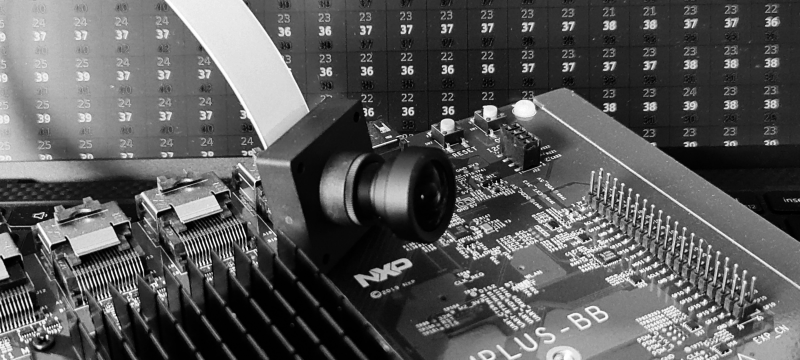
Time to convert the image coming from the i.MX8MP development board.

$ ssh root@imxdev
$$ v4l2-ctl --set-fmt-video=width=3840,height=2160,pixelformat=YUYV --stream-mmap --stream-count=1 --device /dev/video0 --stream-to=data.raw
$$ exit
$ scp root@imxdev:data.raw .
$ python3 yuv_2_rgb.py data.raw out.png 3840 2160
$ xdg-open out.png

Color recognition with Raspberry Pi

We know how to build. We know how to run. We even know how to use different architectures. Time to start doing something useful.

Our goal: deploy a simple, containerized application that will display a color seen by the Raspberry Pi’s camera*. Described application and a docker config file can be found here.

Because we target the ARMv6 architecture, I decided to base the docker image on Alpine Linux. It supports many different architectures and is very small in size (5MB for minimal version). Let’s add OpenCV lib and the target application on top of it. Below is Docker config file.

FROM arm32v6/alpine

ARG OPENCV_VERSION=3.1.0

RUN apk add --no-cache \
    linux-headers \
    gcc \
    g++ \
    git \
    make \
    cmake \
    raspberrypi

RUN wget https://github.com/opencv/opencv/archive/${OPENCV_VERSION}.zip && \
    unzip ${OPENCV_VERSION}.zip && \
    rm -rf ${OPENCV_VERSION}.zip && \
    mkdir -p opencv-${OPENCV_VERSION}/build && \
    cd opencv-${OPENCV_VERSION}/build && \
    cmake \
    -D CMAKE_BUILD_TYPE=RELEASE \
    -D CMAKE_INSTALL_PREFIX=/usr/local \
    -D WITH_FFMPEG=NO \
    -D WITH_IPP=NO \
    -D WITH_OPENEXR=NO \
    -D WITH_TBB=YES \
    -D BUILD_EXAMPLES=NO \
    -D BUILD_ANDROID_EXAMPLES=NO \
    -D INSTALL_PYTHON_EXAMPLES=NO \
    -D BUILD_DOCS=NO \
    -D BUILD_opencv_python2=NO \
    -D BUILD_opencv_python3=NO \
    .. && \
    make -j nproc && \
    make install && \
    rm -rf /opencv-${OPENCV_VERSION} 

COPY src/** /app/
RUN mkdir -p /app/build && cd /app/build && cmake .. && \ 
    make && \
    make install && \
    rm /app -rf 

ENTRYPOINT ["/usr/local/bin/opencv_hist"]
CMD ["0"] 

I set my binary as an entry point so it will run when the container is started. I also use CMD to set a default parameter which is a camera index. If not given, 0 will be used. Now we can build and push this image to the Docker hub (or another Docker registry).

$ docker build --rm -t 4point2software/rpi0 .
$ docker push 4point2software/rpi0

Assuming you have a camera attached and configured on our Pi0, you can execute the following lines on the target machine.

$ docker pull 4point2software/rpi0
$ docker run --device /dev/video0 4point2software/rpi0

This should result in an output that will change every time you present a different color to your camera.

A very nice thing about building applications inside containers is that they are completely independent of the target file system. The only requirement is the docker engine – all the rest we ship with our app. Different architecture needed? Just change the base image (eg. arm32v7/alpine). No need for setting up a new tool-chain, cross-compiling, and all related stuff. Think about sharing build environments, CI builds, and you will definitely consider this as something worth trying.

* I will be using a Raspberry Pi 0 with a camera module to get the peak value of the HS histogram