
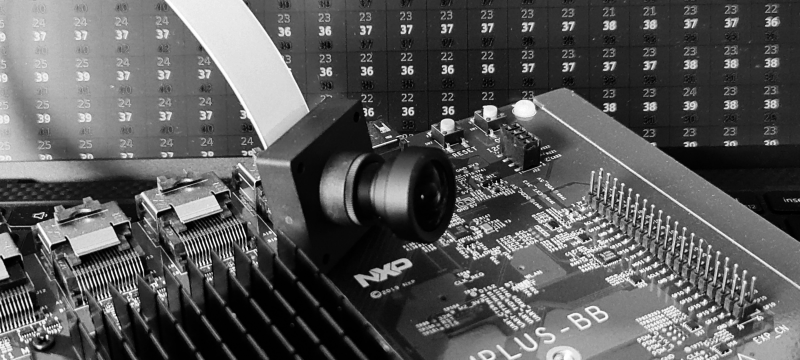
In the previous post, we were garbing a RAW image from our camera using the v4l2-ctl tool. We were using a primitive Python script that allowed us to look at the Y channel. I decided to create yet another primitive script that enables the conversion of our YUV422 image into an RGB one.
import os
import sys
import cv2
import numpy as np

input_name = sys.argv[1]
output_name = sys.argv[2]
img_width = int(sys.argv[3])
img_height = int(sys.argv[4])


with open(input_name, "rb") as src_file:
    raw_data = np.fromfile(src_file, dtype=np.uint8, count=img_width*img_height*2)
    im = raw_data.reshape(img_height, img_width, 2)

    rgb = cv2.cvtColor(im, cv2.COLOR_YUV2BGR_YUYV)

    if output_name != 'cv':
        cv2.imwrite(output_name, rgb)
    else:
        cv2.imshow('', rgb)
        cv2.waitKey(0)
The OpenCV library does all image processing, so the only thing we need to do is to make sure we are passing the input data in the correct format. In the case of YUV422 we need to use an image with two channels: Y and UV.
Usage examples:
python3 yuv_2_rgb.py data.raw cv 3840 2160
python3 yuv_2_rgb.py data.raw out.png 3840 2160
Test with a webcam
You can check if your laptop camera supports YUYV by running the following command:
$ v4l2-ctl --list-formats-extIf yes run following commands to get the RGB image. Please note that you might need to use different resolutions.
$ v4l2-ctl --set-fmt-video=width=640,height=480,pixelformat=YUYV --stream-mmap --stream-count=1 --device /dev/video0 --stream-to=data.raw
$ python3 yuv_2_rgb.py data.raw out.png 640 480
Test on the target
Time to convert the image coming from the i.MX8MP development board.
$ ssh root@imxdev
$$ v4l2-ctl --set-fmt-video=width=3840,height=2160,pixelformat=YUYV --stream-mmap --stream-count=1 --device /dev/video0 --stream-to=data.raw
$$ exit
$ scp root@imxdev:data.raw .
$ python3 yuv_2_rgb.py data.raw out.png 3840 2160
$ xdg-open out.png

 Thinking Toasters
You must be logged in to post a comment.